Emboss Texture Weave
Introduction
This topic will explain Emboss Texture Weave, describe how to access it, the options found in it, and will provide links to related topics.
Emboss Texture Weave
This type of embossed texture produces surfaces that are interwoven, similar to the appearance of a basket weave.
Navigation
To create an Emboss Texture Weave feature:
-
In the
 BobART
tab, right-click
BobART
tab, right-click  Emboss Model, point to Emboss Texture,
and click Weave.
Emboss Model, point to Emboss Texture,
and click Weave.
The Weave dialog displays.
Parameters
Quick Access
-
 Apply - regenerates the canvas to display the current parameters of the feature.
 -
 OK - regenerates the canvas to display the current parameters of the feature and exits the dialog.
 -
 Cancel - discards the updates to the parameters and exits the dialog.
 -
 Show or Hide all images in the graphics area - This option will show all hidden images in the graphics area. This same option will hide all images in the graphics area, besides the one being worked on for those features which utilize a loaded image.
 -
 Show or Hide the embossed BobART model in the graphics area - This option will show the hidden canvas in the graphics area. This same option will hide the visible canvas in the graphics area.
Attributes
- Name- indicates the feature name that displays in the BobART tree.
By default, it is automatically named by the feature type and
number. Note that you cannot use the hyphen (-) character with
spaces around it, as this is reserved for the automatic naming
and will be removed. You can however use it without spaces, for
example, Emboss-Body).
- Color - click the drop down to select a Theme Color or Standard Color, or click More Colors to open the Select Color dialog. Select the desired color for the feature, and click OK to set the color, or Cancel to exit the dialog.
Application Type
These options are explained in more detail in the Application
Types help topic.
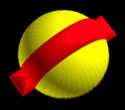
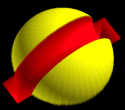
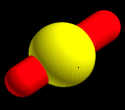
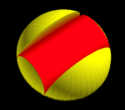
| Add | Subtract | Merge High | Merge Low |
|
|
|
|
- Add - Builds up on top of the existing features.
- Subtract - Pushes down into the existing features.
- Merge High - Builds up independent of the existing features and intersects as needed.
- Merge Low - Builds up in place of existing features.
Parameters
Drive Curve Shape
- Length - is half the length
of a visible weave section in the resulting embossed weave.
- Z
Height - is the distance from the base of a visible weave
section to the peak of the same weave section.
- Peak
Length - is the length of the flat area created at the
peak of the weave. This value cannot be greater than the Length
parameter. The software automatically changes the Peak Length
to.
- Smooth Curve
 Select the check box to have the system
generate a smooth ascent and descent for the driving curve. This uses
the spline-style curve shown in the dialog box image.
Select the check box to have the system
generate a smooth ascent and descent for the driving curve. This uses
the spline-style curve shown in the dialog box image. Clear the check box to leave the ascent
and decent of the drive curve sharp. This uses the straight-line curve
shown in the dialog box image.
Clear the check box to leave the ascent
and decent of the drive curve sharp. This uses the straight-line curve
shown in the dialog box image.
Weave
- Width - indicates
the distance of the weave, perpendicular to the driving curve
shape.
- Rotation Angle - sets the angle of the texture in relation to the X-axis.
Cross-Section
Select the type of cross-section and set the values. These values are applied to the edges of the resulting weave. View the Emboss Cross Sections help topic to learn about the options.
- Convex Arc - This cross-section type creates a raised arc
in the model using the following parameters.
- Radius - sets the distance
from the center of the arc to the edge of the arc.
- Start Angle - sets where
the arc begins and is tangent to adjacent surfaces in the model.
- End Angle - sets where the arc stops and is tangent to adjacent surfaces in the model.
Note: If the Start Angle is greater than the End Angle the resulting surface is concave and the radius does not appear in the model. The angles should be within a sweep of 90 degrees, that is, neither value should exceed 90.
- Concave Arc - This cross-section type creates a sunken or depressed arc in the model
using the following parameters.
- Radius - sets the distance
from the center of the arc to the edge of the arc.
- Start Angle - sets where
the arc begins and is tangent to adjacent surfaces in the model.
- End Angle - sets where the arc stops and is tangent to adjacent surfaces in the model.
- Line - This cross-section type creates an angled wall on the model using the
following parameters.
- Height - sets
the distance from the bottom of the Slope Angle to the top of the
Slope Angle. If looking at the results of this operation as a right
triangle, the height indicates the length of a leg and not the length
of the hypotenuse.
- Slope Angle -
sets the angle of the resulting surfaces, relative to the stock of
the model.
- Height - sets
the distance from the bottom of the Slope Angle to the top of the
Slope Angle. If looking at the results of this operation as a right
triangle, the height indicates the length of a leg and not the length
of the hypotenuse.
- Convex Ellipse - This cross-section type creates a raised radial surface on the model
using the following parameters.
- Major Axis -
sets the horizontal length of the ellipse.
- Minor Axis -
sets the height of the surface created by the operation.
- Concave Ellipse - This cross-section type creates a sunken or depressed radial surface
in the model using the following parameters.
- Major Axis -
sets the horizontal length of the ellipse.
- Minor Axis -
sets the height of the surface created by the operation.
- Spline - This cross-section type creates a contour using three control points
as follows.
- Point 1(X-Y) - sets the
distance from the base geometry to the first control point in X/Y.
- Point 1(Z) - sets the distance
from the stock to the first control point of the contour in Z.
- Point 2(X-Y) - sets the
distance from the base geometry to the second control point of the
contour in X/Y.
- Point 2(Z) - sets the distance
from the stock to the second control point of the contour in Z.
- Point 3(X-Y) - sets the
distance from the base geometry to the third control point of
the contour in X/Y.
- Point 3(Z) - sets the distance
from the stock to the third control point of the contour in Z.
- Point 1(X-Y) - sets the
distance from the base geometry to the first control point in X/Y.
- Custom Cross Section
In addition to the six predefined cross-section shapes, you can select custom cross-section geometry. The custom cross section must be an open shape and it must be drawn (flat) in the XY plane. The cross section can be drawn anywhere in the graphics area, as long as it is drawn in the XY plane. The open shape can include lines, arcs, and splines.
Because embossed models cannot have undercut areas, any part of a custom cross section that would result in an undercut area results in a vertical wall. What this means is that although there are some limitations on the shape of the custom cross section, you can draw any open shape, and the software automatically uses as much of the shape as possible. If you cannot create the desired result, you may need to redraw the cross section.
To assign a custom cross section:- In the Cross Section group
of the emboss feature dialog box, select Custom.
- In the BobART
tree, right-click
 Cross Section Geometry, and
click Re/Select.
Cross Section Geometry, and
click Re/Select. - In the graphics area, select
the cross section geometry, and confirm the selection.
- Regenerate the model.
- In the Cross Section group
of the emboss feature dialog box, select Custom.
Boundary Geometry
Selected Geometry
|
|
|
| The list box will list the entities currently selected for the function. | |
 (Delete) - removes the highlighted item from the list.
 (Delete All)- removes all entities from the list.
- OK
- accepts any changes and closes the dialog. (The first time you click
OK, the feature is created and added to the BobART tree.)
- Cancel - cancels the creation of the feature (the first time that the dialog box displays). When editing the feature, this cancels any changes and closes the dialog.
After defining the parameters, you use the Emboss Features in the BobART Tree to edit the feature as needed.
The Emboss Feature in the BobART Tree
When you finish defining the feature parameters and click OK, the feature is added to the BobART tree. You right-click each feature item in the tree to access a shortcut menu.
The Feature Shortcut Menus
 Texture Weave
Right-click this item to access the following commands.
- Edit - opens the Feature dialog for you to modify the feature parameters.
- Delete - removes the feature from the tree. Regenerate to view the change in the model.
- Suppress/Unsuppress - is used to remove the feature from the model or to restore a suppressed feature. To update the model, Regenerate.
- Save As Component/STL - is used to save the feature as a component or .stl file. This saves the individual feature and not the entire model. The STL Save Option dialog box is displayed for you to set the tolerance. Next, the Save As dialog is displayed for you to select a location, name the file, and save it. The component can be used to create an Emboss from Component feature.
Boundary Geometry
Right-click this item to access the following commands for assigning a boundary. If no boundary is assigned, the texture is applied to the entire model (stock area).
-
Re/Select -
 .
. -
Remove - removes any geometry assigned to the feature boundary.
Cross-Section Geometry
Right-click this item to access the following commands.
-
Re/Select -
. -
Remove - removes any geometry assigned to the cross section.
-
Reverse Direction - reverses the chain direction of the selected cross section.
Generating the Model
After all necessary selections are made, you must regenerate to create the model.
To Regenerate the Model, do one of the following:
- From the BobArt Tree, right-click
 Emboss Model, and click Regenerate.
 - From the feature dialog, click OK.
Note: Every time a change is made to an Emboss feature, you must Regenerate to update the model.
