The Advanced UI Retracts Dialog
Introduction
This topic explains the Retracts dialog of the Advanced UI for the following operations:
-
Advanced Rough
-
Flatlands
-
Equidistant
-
Pencil
-
Advanced Planar
-
Project Curves
-
Advanced Z Level Finish
-
Steep Shallow
The Retracts dialog
The Retracts dialog handles all of the clearance area and retract options for features in the Advanced UI. The clearance area is a retraction area specified by a certain shape. This area is where the tool can safely travel around the part, without causing gouges. The clearance area uses rapid feedrate.
Navigation
To access Retracts:
- The Retracts dialog can be found on the Link page.
At the bottom of the page, click the Retracts button on the left.
The Retracts dialog appears.
Parameters
Home Position
The Home Position group is used to specify the home position of the
tool for the feature using the specified XYZ
coordinates. These values are only available when you select Start from
Home Position or Return to Home Position in the Link tab (for the Entry/Exit
group).
-
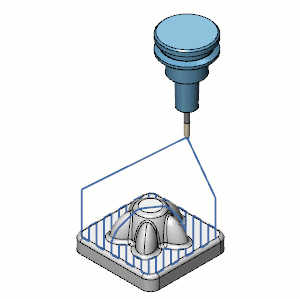
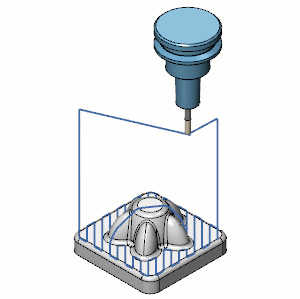
Sequence - determines how the home point connects with the entry and exit moves.
-
Shortest - moves directly to the entry position and comes directly back from the exit.
-
Horizontal and vertical - moves along the x,y plane to the position above the entry move before moving down in z. On the exit move, it will move up in z before moving along the x,y plane to the home position.
-
Clearance Area
- Type
- Plane
- is the only setting available for 3 Axis toolpaths.
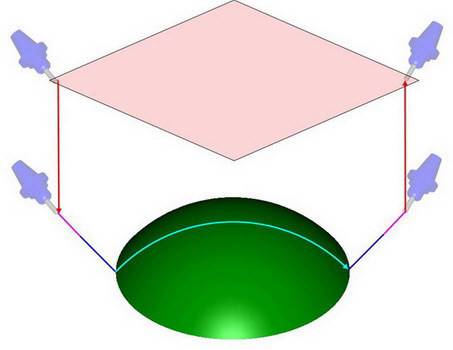
- Plane
- is the only setting available for 3 Axis toolpaths.
- Direction
- is the direction in which the tool retracts to reach the clearance
plane.
- X-Axis
- the tool retracts in the X-axis direction.
- Y-Axis
- the tool retracts in the Y-axis direction.
- Z-Axis
- the tool retracts in the Z-axis direction.
- User
defined direction - once this option is selected, click
 to open
the Pick dialog box. You can type coordinates, or click Pick
to select line or point geometry to set the direction vector.
to open
the Pick dialog box. You can type coordinates, or click Pick
to select line or point geometry to set the direction vector. - Machining direction - sets the normal vector of the plane to align with the machining direction.
- X-Axis
- the tool retracts in the X-axis direction.
- Height
- defines the plane's height above the part in reference to the
machining origin coordinate system.
- Automatic - allows the system to determine a safe distance to utilize.
- User defined - allows the user to define the distance to use.
- Automatic - allows the system to determine a safe distance to utilize.
- Use localized clearance plane - minimizes the automatically determined clearance plane height. It considers the area that is limited by the provided 2D containment boundary.
- Use Air Move Safety Distance - determines if the Air move safety distance in the Distances group is used.
Incremental clearance plane
This group is only available when the Clearance area Height is set to Automatic.
- Incremental
Height - allows you to define an incremental clearance
distance to be used instead of the standard (absolute) clearance
distance. This value is used when selecting Retract from Incremental
Clearance Area in the Links page.
Advanced options for clearance area
These options cannot control tool angle on 3 Axis toolpaths.
- Interpolation
Tilt Angles - is used to interpolate the tool tilting
during clearance movements using the Angle Step for Rapid/Feed
Move parameters.
- Keep
initial orientation until distance - only available for
clearance plane, this option uses the machining tilting angle
in the clearance area. You can define a distance from the end
point of the rapid distance along the rapid retract motion of
the clearance area. When you select the check box, the Angle Step
for Rapid/Feed Moves parameters become available (as well as the
distance box).
Distances
The distances group is used to define the rapid, feed, and air move safety distances that are used with the retracts and link parameters.
- Rapid distance
- is the distance from the plunge line to the start of the feed distance.
The tool orientation is the same as for the feed distance. Feed rate
is rapid.
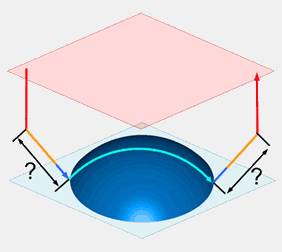
- Entry feed distance
- defines the distance from the feature at which the feedrate changes
from rapid speed to the machining feedrate for the entry move.
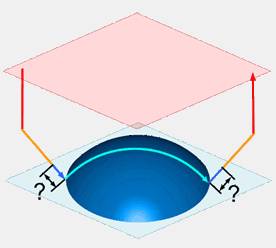
- Exit feed distance - defines the distance from the feature at which the feedrate changes
from rapid speed to the machining feedrate for the exit move.
- Equal to entry feed - disables the text field and matches the output value to that of the Entry feed distance.
- User defined - enables the text field, allowing you to enter a value differing from that of the Entry feed distance.
- Equal to entry feed - disables the text field and matches the output value to that of the Entry feed distance.
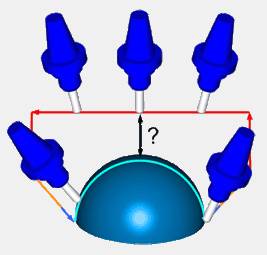
- Air move safety distance -
is a minimum distance between the tool moving in the clearance area
and the drive surface/check surface.
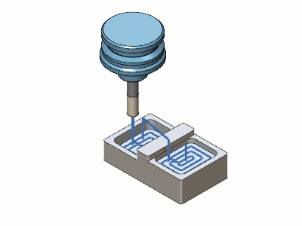
- Optimize lead and link distances - The improved in-process-stock awareness optimizes link heights and keeps them to a minimum. This reduces linking motions by up to 30% and therefore reduces machining time while maintaining machining safety.
Optimized Link Height Normal Link Height 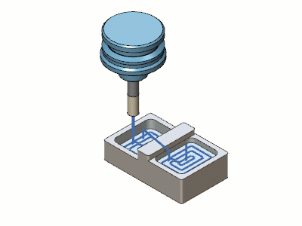
Optimized Ramp Height Normal Ramp Height 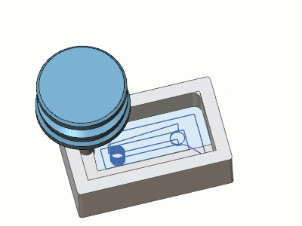
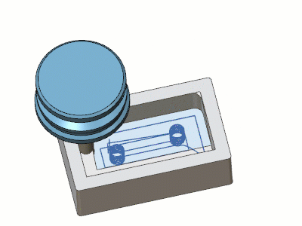
Radial clearance
The tool is expanded by the specified radial clearance value and is used for link checking on collisions. If the retract link height is not sufficient to avoid collisions with the expanded tool, it is automatically adjusted.
- Feed - sets the added clearance value along the feed moves.
- Rapid - sets the added clearance value along the rapid moves.
Arc fit
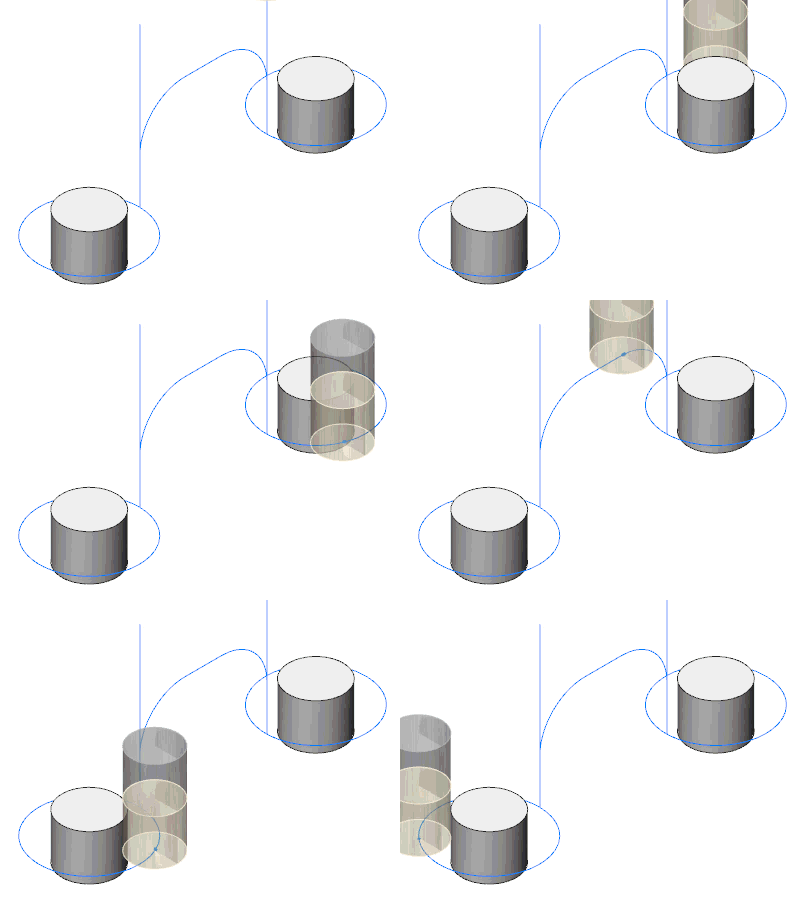
The Arc Fit group can be used to define an arc move to fit the connections of Retract to Feed Distance, Retract to Rapid Distance, and Retract to Clearance Area retract options. This replaces the linear move between retracts with the specified arc move.
To create an arc fit between retract moves for any of the available options: Clearance Area, Rapid Distance, or Feed Distance, click to select the check box and type a value in the Arc Radius box. You can only specify one arc radius value, but it can be applied to any or all of the retracts types at the same time.
- Arc fit off:
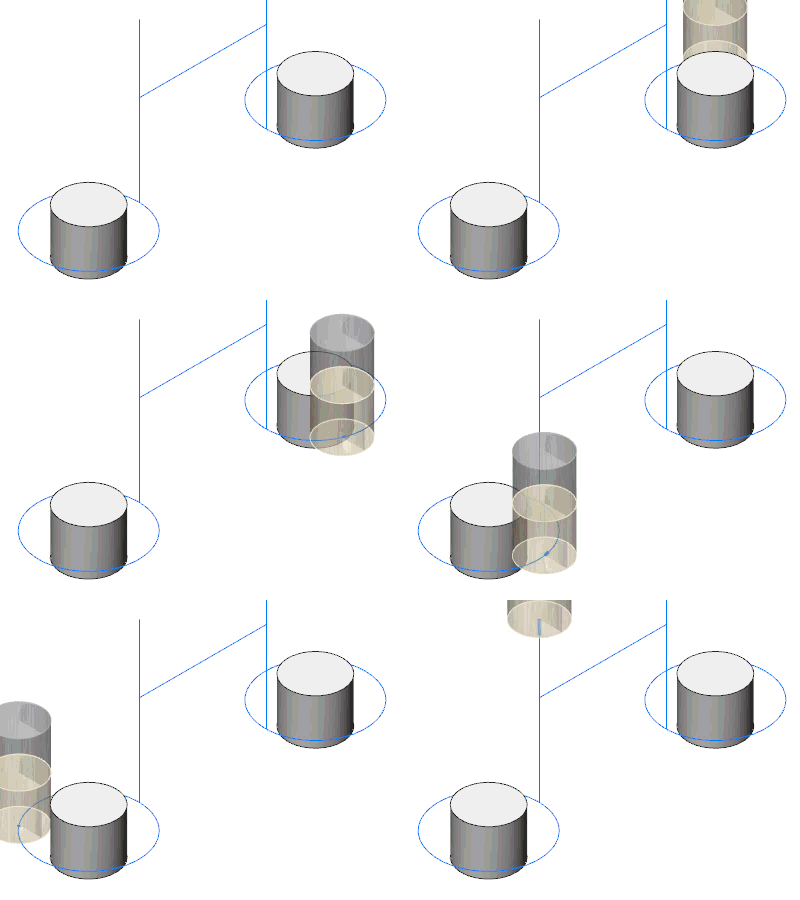
- Arc fit on: