Emboss 2-Rail Sweep Example 2
Introduction
This tutorial explains how to make an Emboss 2-Rail Sweep using the Sync Rail Nodes option. A mirror frame is used to show the results created using the available 2-rail sweep options.
To use the Sync Rail Nodes option successfully, the two rails used for the sweep must have the same amount of entities. This is explained later in this tutorial. Complete this tutorial along with the other 2-Rail Sweep tutorials to gain a full understanding of the Emboss 2-Rail Sweep.
Example File
The part file for this tutorial
is available for download at: http://www.bobcad.com/helpfiles.
If you are connected to the Internet, you can click the link provided
to download and save the Emboss
2 Rail Sweep Sync Rail Nodes Example 1
Part 1) Open the Example File
-
In the
The Open dialog is displayed.
-
Select , and click Open.
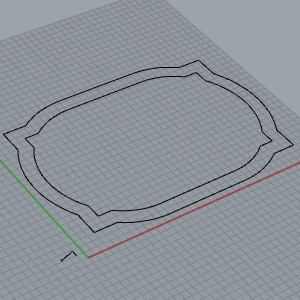
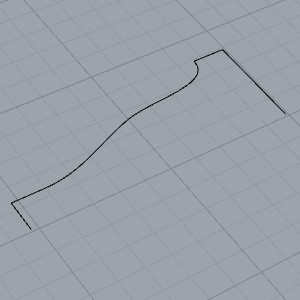
The prepared geometry displays in the graphics area as shown in the following images. The first image shows the two rails, and the second shows the cross section geometry.
Part 2) Define the Stock, and Add the Feature
-
In the
 BobART
tab, right-click
BobART
tab, right-click  Emboss Model, and click Emboss 2-Rail Sweep.
Because the stock is not yet defined, the Stock Parameters dialog box is displayed so you can set the stock parameters.
(To modify the stock after it is created, right-click Emboss
Model, and click Create/Modify
Stock.) -
In the Stock Parameters dialog box, leave the Origin values set to X0Y0Z0.
-
In the Model Size group, set the X value to
-
Click OK.
The 2 Rail Sweep dialog box appears. -
Leave the default settings and click OK.
The stock is drawn in the graphics area and the  2-Rail Sweep 1-Add feature is added to the BobART tree.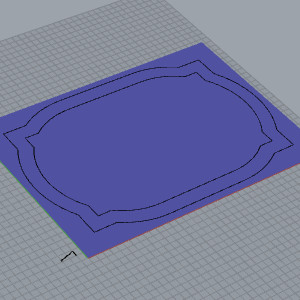
Part 3) Define the Rails and Cross Section Geometry and Generate Sweep
-
Right-click
 Rail 1-Geometry, and click Re/Select.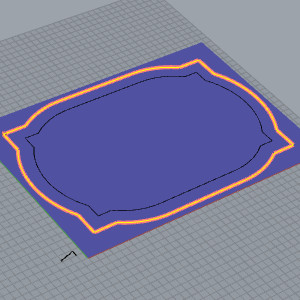
To confirm the selection, click OK.
OK.
This selects the entire outer loop and assigns a chain direction (shown with an arrow) for that loop. This is shown in the next image.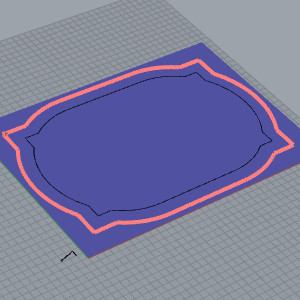
The geometry and chain direction for Rail 1 is now defined. -
Right-click
Rail-2
Geometry, and click Re/Select.
This time, chain-select the inner geometry at the
same location (top-left corner).
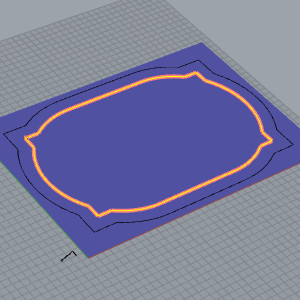
To confirm the selection, click OK.
The results should look like the image shown next.
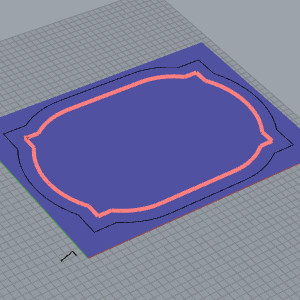
The geometry and chain direction for Rail 2 is now defined. Make sure that each Rail Geometry shares the same chain direction.
In addition, when using Sync Rail Nodes, the starting point for each rail must also be the same. That is, they must begin using the same entity as the other rail. (Both rails should already have the same start point because of the way that you selected the geometry.)
Tip: To show the selected chain and direction, click a Rail-Geometry item in the BobART tree. To reverse the chain direction, right-click Rail Geometry, and click Reverse Direction.
Important: The location of the rail start points are critical to a good emboss. Make sure to keep the start points in the same location as seen in the image below. If the start points are not correct, use the CrvSeam command to relocate them. 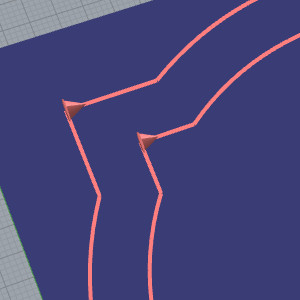
-
Right-click
Cross-Section Geometry-1, and click
Re/Select.
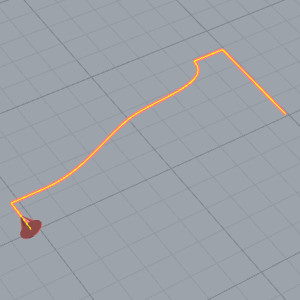
To confirm the selection, click OK.
The geometry and chain direction for Cross-Section 1 is now defined and should appear as follows.
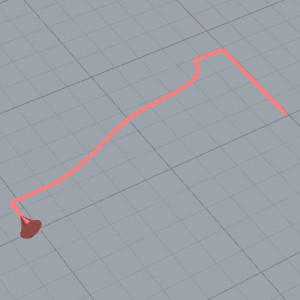
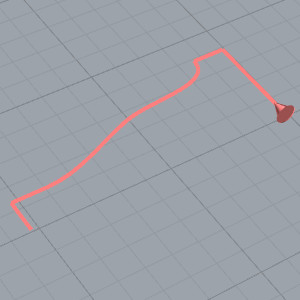
The direction of the selected cross-section geometry is important because the start point of the cross section is connected to Rail 1 and the end is connected to Rail 2. The cross section is swept along the rails from the starting point to the opposite end. The outcome of any 2-rail sweep is controlled entirely by the chain direction used for each entity.
The images below show the effect of the direction of the cross section. The images also show a cleaner result obtained using the Sync Rail Nodes option explained later in the tutorial.
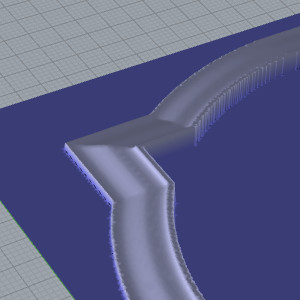
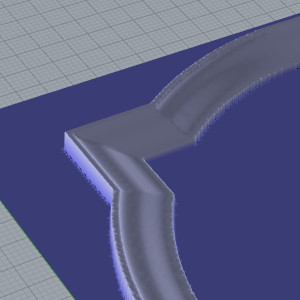
Tip: To show the selected chain and direction, click a Rail-Geometry item in the BobART tree. To reverse the chain direction, right-click Rail Geometry, and click Reverse Direction.
-
Now that all geometry is defined, right-click
Emboss
Model, and click Regenerate.
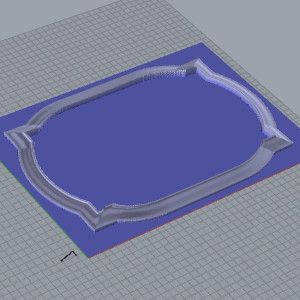
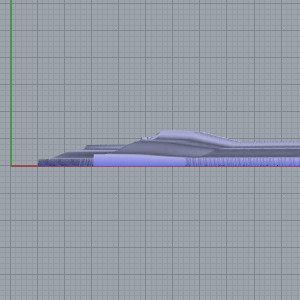
Examine the sweep in the corners of the frame. Notice that the cross-section geometry does not share all of the same nodes. This is the result of not using the Sync Rail Nodes option. The nodes are the points at the junction of different entities, such as lines to arcs. To create a more realistic looking frame, the cross section geometry should match up at these nodes on the inner and outer profile of the frame. If you rotate the view, you also notice that the frame does not have the same height, in the Z-axis, throughout its length. This is the result of using the Scale Cross Section Based on Width option and is shown next.
Part 4 ) Edit Feature and Regenerate the Sweep
-
Right-click
2
Rail Sweep 1 - Add, and click Edit
to open the 2-Rail Sweep dialog box. -
Click to clear the
 Scale Cross Section Based on Width
check box.
Scale Cross Section Based on Width
check box.
This results in a uniform height around the rails using the dimension of the cross section geometry and is shown next.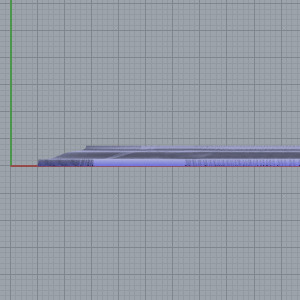
-
Click to select the
 Sync Rail Nodes check box,
and click OK.
Sync Rail Nodes check box,
and click OK.
This results in a sweep that uses matching nodes at the end of each entity. -
Right-click
Emboss
Model, and click Regenerate.
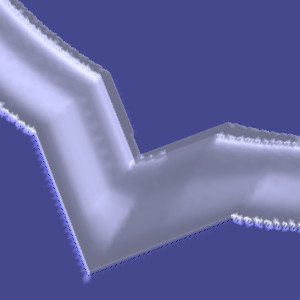
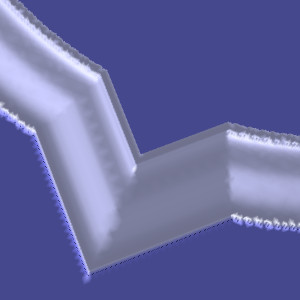
Notice the difference in the corners of this frame compared to the earlier frame. The Sync Rail Nodes option, for this example, helps to create a more realistic looking frame. For more information view Emboss 2-Rail Sweep.
This concludes the tutorial.


