How to Create 4 Axis Wire EDM Features
Introduction
In this tutorial, we examine how to create Wire EDM 4 Axis features. This tutorial is designed as a supplement to the other tutorials for the purpose of explaining the differences between 2 Axis and 4 Axis Wire EDM features. (This is done to eliminate redundant information and get you working with Wire EDM as fast as possible.) To gain a complete understanding of creating Wire EDM features and using the Wire EDM Wizard, view the all tutorials listed in the Wire EDM Tutorials.
Example File
The part model, stock, and machine Setup for this tutorial are shown next.
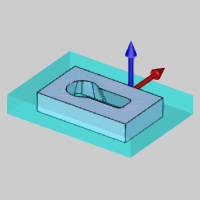
Part 1) Add the Feature and Assign Geometry
One main difference between 2 Axis and 4 Axis Wire EDM features is the geometry selection. While 2 Axis features only require a single profile, 4 Axis features require an Upper Profile and Lower Profile. In addition to the two profiles, you can also select Sync Line geometry to determine the alignment of the wire between the upper and lower profiles.
The following is a step-by-step example of creating a 4 Axis feature and assigning geometry.
-
In the CAM Tree, right-click Machine Setup, and click 4 Axis Inside
The Wire 4 Axis Wizard displays. -
To assign the upper profile geometry, click Select Upper Profile.
-
In the graphics area, right-click the inner surface edge at the top of the model, and click Constant Z.
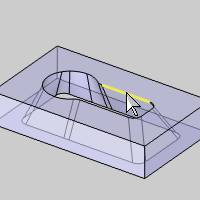
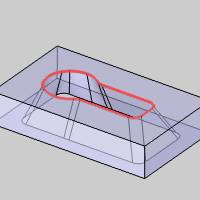
To confirm the selection, click OK.
Notice, as shown in the images, the part view is transparent to assist with geometry selection. -
To assign the lower profile geometry, click Select Lower Profile.
Right-click the lower surface edge, and click Constant Z.
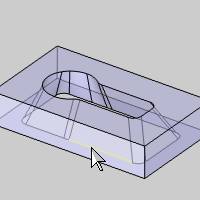
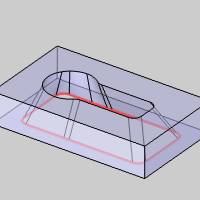
Tip: Notice that the inner surface edge was selected through the solid because it was transparent. When you point to the surface, it becomes highlighted, but when you move the pointer over the edge that is behind the surface, that edge becomes highlighted and can then be selected.)
-
To confirm the selection, click OK.
For this example we do not select any Sync Line geometry. -
Click Next>> to go to the Feature settings.
Note: You can
select geometry for 4 Axis features using solid edges (as shown), or you
can select wireframe geometry. Either way the software projects the Upper
Profile to the top of the stock and projects the Lower Profile to the
bottom of the stock defined for the job. The point here is that regardless
of the Z location of the selected profiles, they are always projected
to the top and bottom of the stock.
The following image shows the result of this
example where the stock is one unit larger than the part model.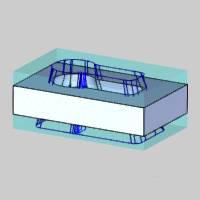
Part 2) Syncing Options
One major difference between 2 Axis and 4 Axis features is the Syncing Options found in the Feature Settings of the Wizard. To learn more about syncing, view How to Use 4 Axis Syncing Options.
Part 3) Select the Feature Start Point for Both Profiles
After finishing the wizard, the feature is added to the CAM Tree. You use the Wire EDM Feature in the CAM Tree to modify the start point as well as modify geometry for Wire EDM features (and much more as explained in the topic link provided).
Important: There are two start points for 4 Axis Wire EDM features, one for the Upper Profile and one for the Lower Profile. Both start points must be set to the desired location and direction to properly create the feature.
After computing the wirepath from the wizard, the start point of each profile may not be in the same direction. This is sometimes the case when selecting solid edges, and you must select the start point location and direction to finalize the wirepath (after finishing the wizard).
The following image shows a wirepath created from the wizard before modifying the start points. The wirepath is not correct until both start points are set to the proper location and direction.
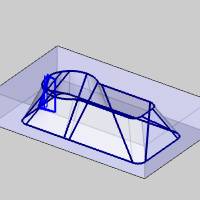
The following is a step-by-step example of modifying the chain start point and direction for 4 Axis features.
Tip: To view the current chain start point and direction before modifying it, click the geometry item (for example Upper Geometry) of the feature in the CAM Tree. This highlights the chain and start point in the graphics area as shown next.
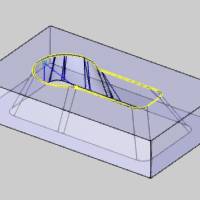
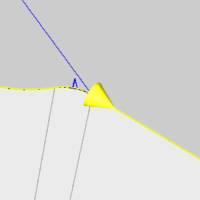
(This display uses the Highlight color from
Settings Part.)
-
In the CAM Tree under
 Feature EDM
4X Inside, right-click
Feature EDM
4X Inside, right-click  Upper Geometry and click Modify
Start Point.
Upper Geometry and click Modify
Start Point.
In the graphics area, click the desired start point on the upper profile.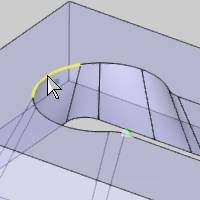
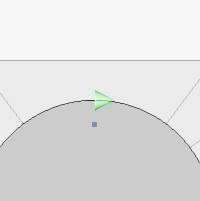
To confirm the selection, click OK. -
Right-click
Lower
Geometry, and click Modify
Start Point.
Click the same location on the lower profile to set the start point.
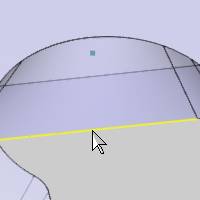
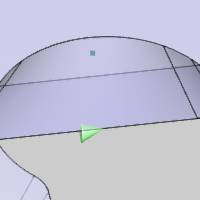
To confirm the selection, click OK.
Tip: Note that Modify Start Point does use the screen position of the pointer, meaning that if you click anywhere in the graphics area after selecting the desired point, the start point updates to the nearest snap point of the location you click. (You don't always have to directly click the geometry to set the start point, but it is often the easiest method to use, depending on the current view orientation.)
-
To update the wirepath, right-click Feature EDM 2X Inside and click Compute All Toolpath.
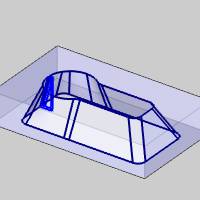
This shows the importance of selecting the proper start point and direction for each profile. As a final note, to change the direction of the start point, you can right-click the geometry item and click Reverse Direction, or you can click the start point directly (during modify start point) to flip the direction.
This completes the tutorial.


