
BobCAD Thumbnail Preview Missing
If you are unable to see the preview of your BobCAD file in Windows Explorer or in the preview pane of the open dialog box from BobCAD, this document lists two different solutions to the issue.
Solution 1 (Windows Explorer Settings):
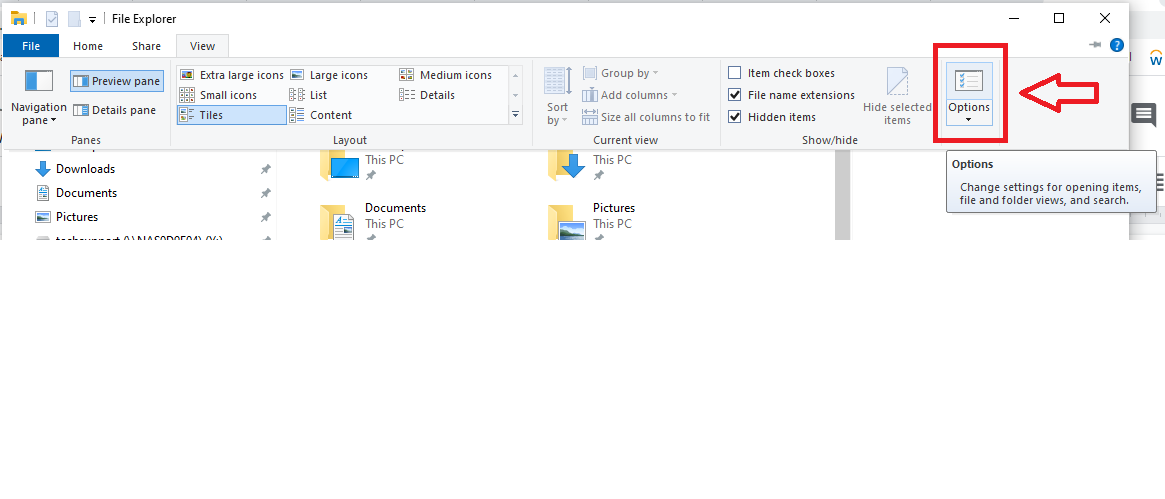
There are two options you need to check in windows explorer.
1. Open up Windows Explorer and click the “View” tab located at the top of the window.
2. Select the “Options” button
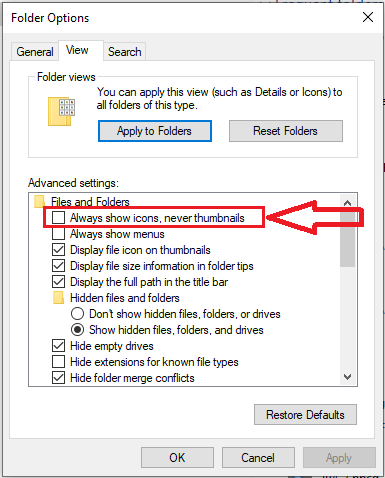
3. There will be another tab called “View”. Select it.
4. Deselect where it says “Always show icons, never thumbnails”
5. Select where it says “Show preview handlers in preview pane”
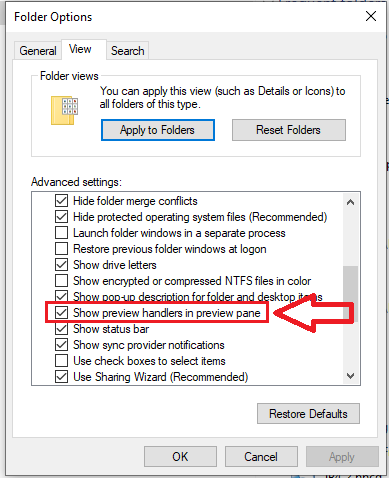
6. Click “Apply” and “OK”
Solution 2 (Registration of DLL):
When installing BobCAD onto your computer, .DLL files are installed and require registration to function properly. If you had installed without full LOCAL Windows Administration permissions, this can prevent proper registration of the DLLs. You need to manually register the preview dll to fix the issue.
You will need to register this dll: BBCDPreviewHandlers.dll
1. Log into Windows as a full Local Administrator Account.
2. Browse in Windows Explorer to find the preview dll. This, by default, will be located here: OS(C:)\Program Files\BobCAD-CAM\BobCAD-CAM V(current version)\BBCDPreviewHandlers.dll
3. Open Command Prompt as an Administrator (Start > All Programs > Accessories > right-click ‘Command Prompt‘ and “Run as administrator“)
4. Enter the following text as shown and press Enter
regsvr32 “OS(C:)\Program Files\BobCAD-CAM\BobCAD-CAM V(current version)\BBCDPreviewHandlers.dll”
Note: Make sure there is a space between the 2 and the “
If you need further assistance, please contact our support team at (727) 489 – 0003 or [email protected]