
BobCAM for Rhino Plug-in Not Loading
If you are experiencing an issue where BobCAM for Rhino is not loading, you have RhinoCAM installed on the computer, and you are getting an “Error loading – BobCAMRhino.rhp” when trying to open Rhino, follow through this article to load BobCAM properly.
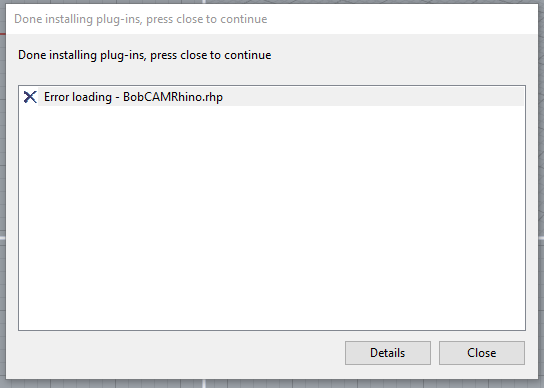
Pic. 1 – Error when loading BobCAM for Rhino with Rhino
If you uninstall RhinoCAM from the computer, this conflict should not exist. If you would still like to have RhinoCAM on the computer, please follow the steps below.
Step-By-Step
Unload RhinoCAM:
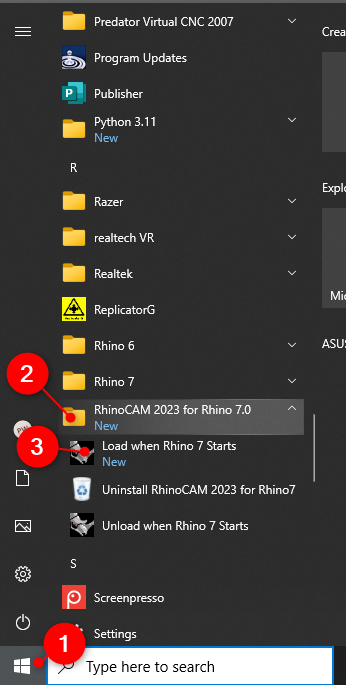
1. Click the Windows icon located at the bottom left of your screen
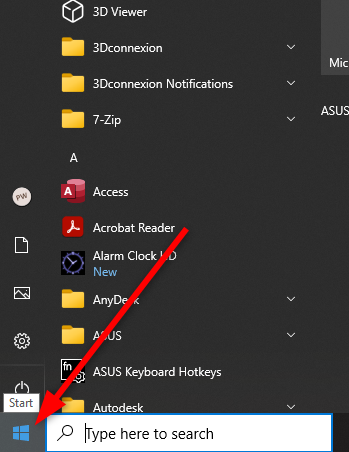
2. Scroll down until you get to the RhinoCAM folder. Expand the folder and select, “Unload when Rhino 7 Starts” (Hit “Yes” if it asks do you want to allow this app to make changes to your device.)
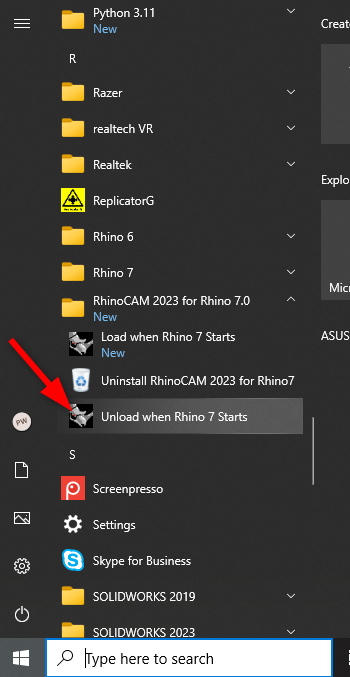
Now, whenever you load Rhino 7. RhinoCAM will not load. This enables BobCAM for Rhino to load up.
3. Open Rhino
4. BobCAM for Rhino should now load or load the registration window. If not, go to Tools > Options, select “Plug-ins” and make sure BobCAM for Rhino is checked off. Check it off and click “OK”
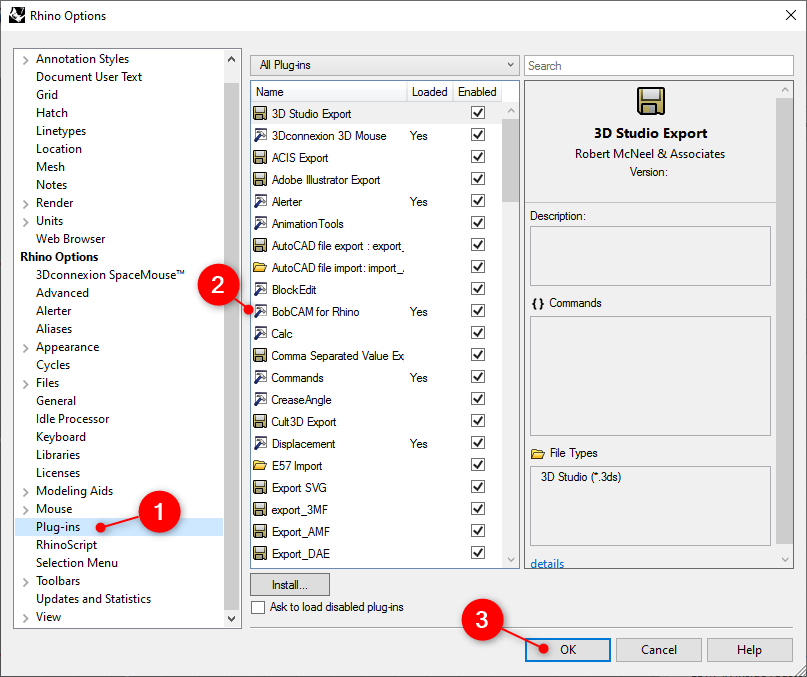
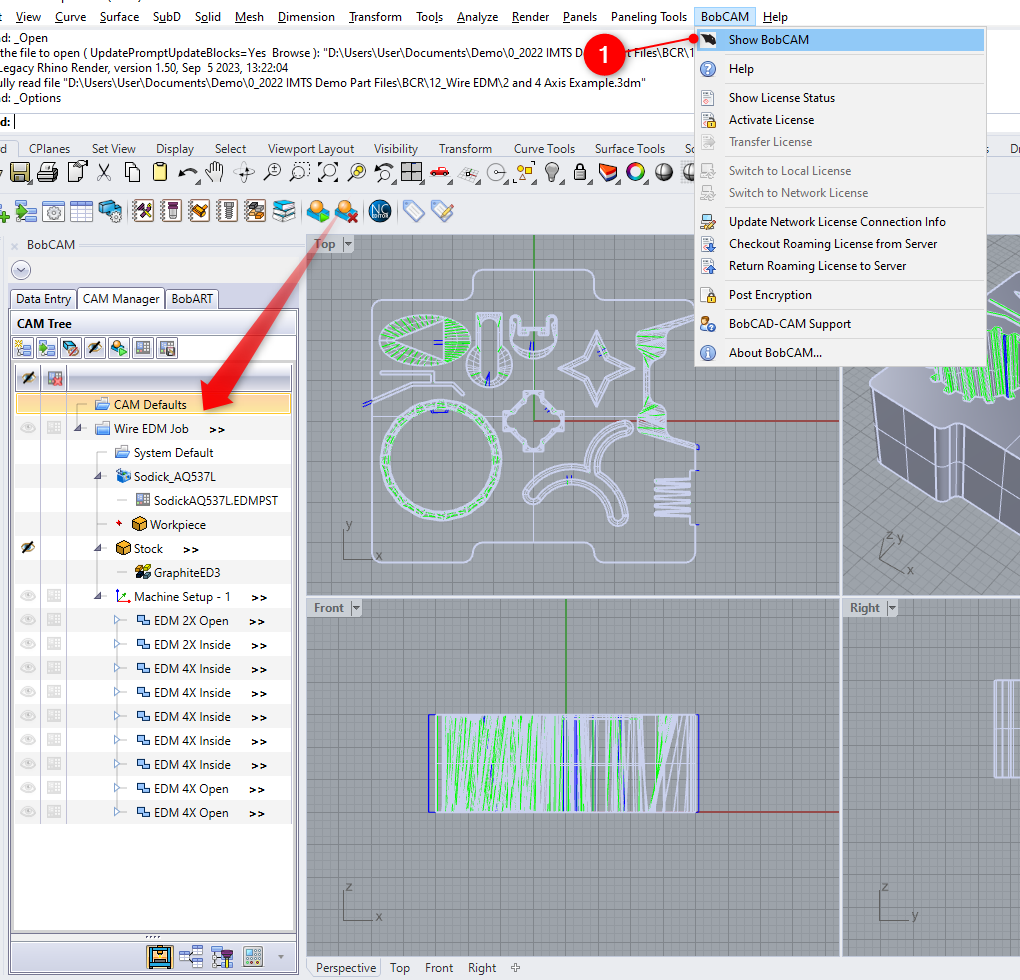
You should now see “BobCAM” as a new menu at the top of the software
5. Click on “BobCAM” at the top menu and select “Show BobCAM”
Reload RhinoCAM:
If you ever want to reload RhinoCAM again, follow steps below.
1. Close Rhino
2. Click the Windows icon, scroll back down to the RhinoCAM folder and select “Load when Rhino Starts”
3. Open Rhino
If you need further assistance, please contact our support team at (727) 489 – 0003 or [email protected]