
How to Transfer / Deauthorize a license
Step-by-Step
1. After opening up the BobCAD software program, click on File in the top left corner and then click on Help.
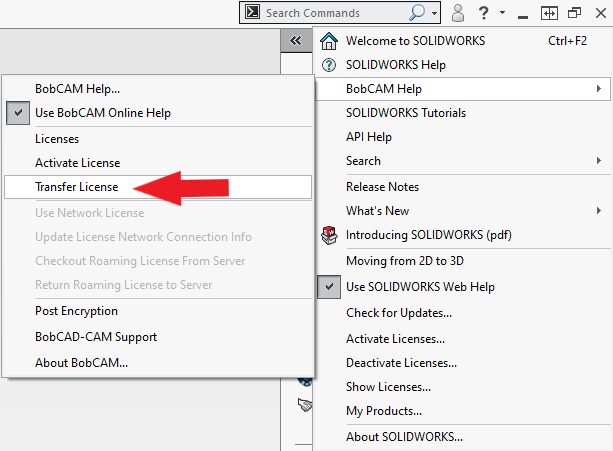
For BobCAM for SolidWorks: click to drop-down question mark arrow
 and go to BobCAM Help
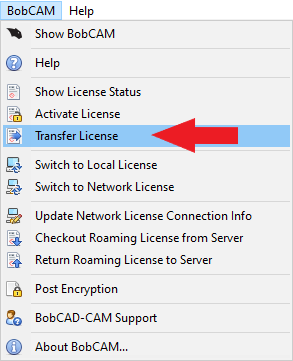
For BobCAM for Rhino: Click the BobCAM
 icon
icon
2. Select the option Transfer License.

For BobCAM for SolidWorks:
For BobCAM for Rhino:
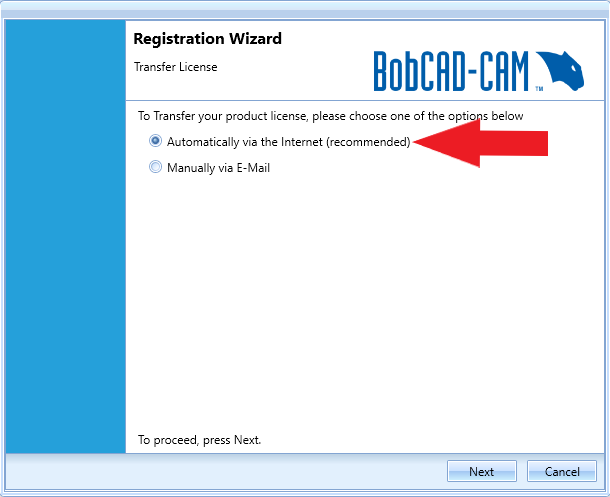
Transfer Automatically via Internet (recommended)
3.1 Select transfer Automatically via the Internet, then click Next.
NOTE: The license will be removed from that computer, and the user can now register with the same license ID and password on a new computer.
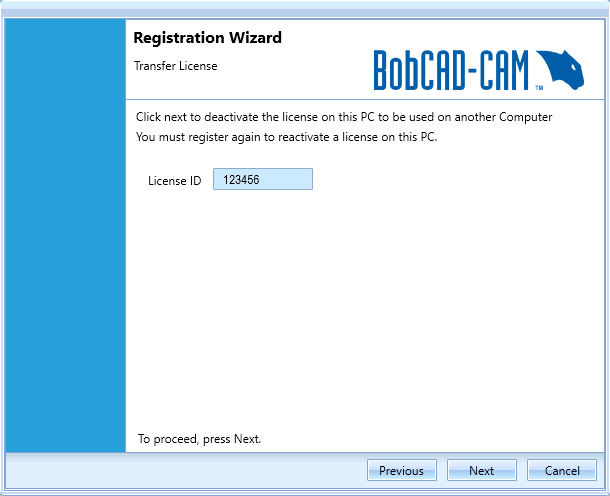
4.1 click Next.
Note: Make sure to note down which License ID you are transferring. You will use that same license ID and password to re-register on the new computer.
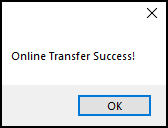
5.1 Online Transfer Success! click OK.
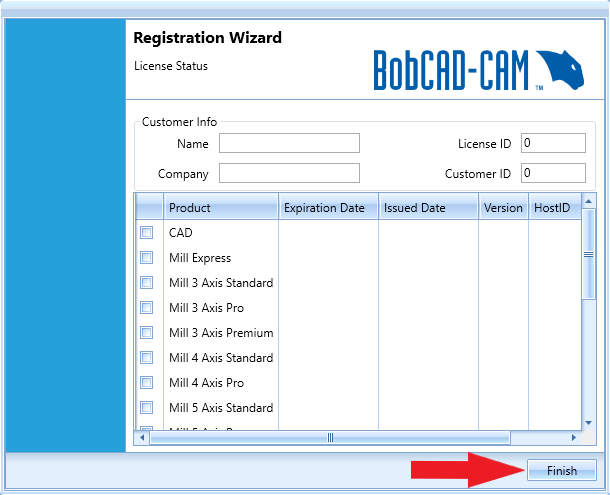
6.1 To finish the transfer, click Finish
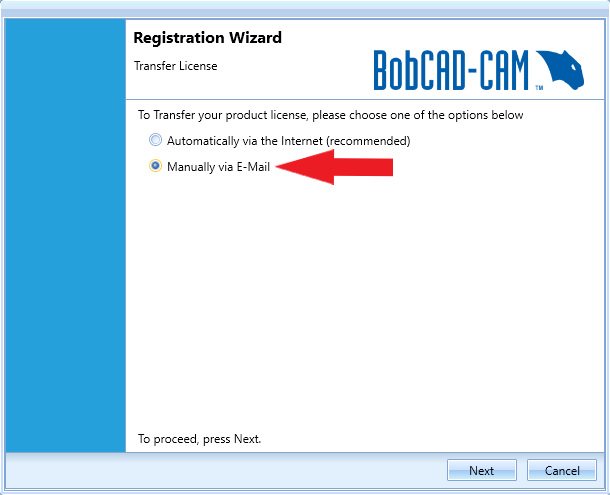
Manually via E-Mail
3.2 Select Manually via E-Mail, then click Next.
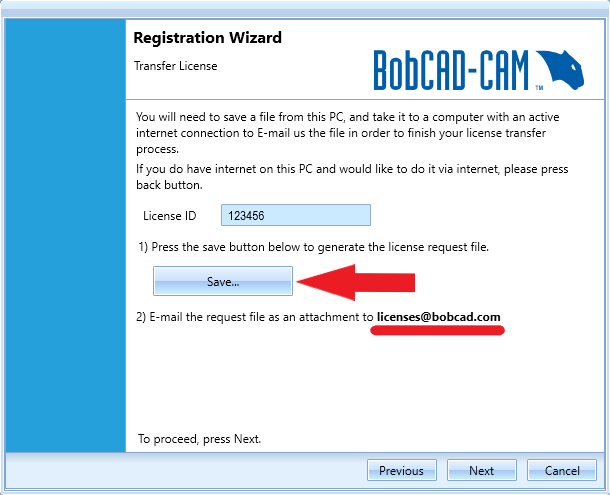
4.2 Click the "Save..." button to save the license file and send an email to [email protected] with the license file attached
Note: You will get an automated response back. This can take some time to come back depending on the amount a traffic. Please give it some time to send a response back.
Once you get the automated response back, you will get an email like the following:
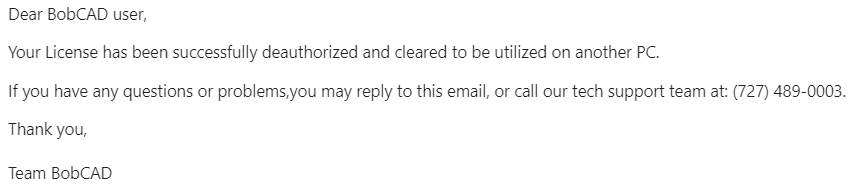
5.1 Once you get an auto response back, to finish the transfer, click Next. Then, Finish
If you need further assistance, please contact our support team at (727) 489 – 0003 or [email protected]