
Customizing Shortcuts in BobCAD-CAM
This article will provide information on how to create and modify short-cut keys in BobCAD to more quickly pull up commands in the software.
Step-by-Step
1. To create a shortcut in BobCAD go to settings at the top left corner.
Pic. 1 Location of Settings Icon

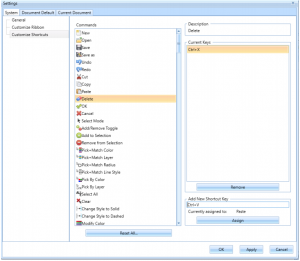
2. Once in the settings window go to the “Customize Shortcuts” tab.
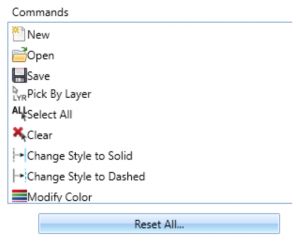
3. Under the “Commands” list left click on the specific feature that you want to create a shortcut for.
Pic. 2 Commands
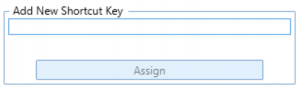
4. To create a new shortcut key left click on the “Add New Shortcut Key” box
Pic. 3 Adding a New Shortcut Key
5. Now type on your keyboard the keys you want to use in BobCAD to pull up the specific command.
Note: All shortcuts must include the control key; ex. Control + B.
6. Hit Assign to add the shortcut
7. Follow steps 3 through 6 for any other commands that shortcuts are wanted for.
8. To finalize all changes hit the apply button
9. Click ok
Pic. 4 Customize Shortcut Window
If you need further assistance, please contact our support team at (727) 489 – 0003 or [email protected]