 Patterns and Parameters
Introduction
This topic will explain the Patterns and Parameters page of the Lathe Basic Finish operation and all the options found in it. This topic will also provide a link to the next topic.
The Patterns and Parameters page
The Patterns and Parameters page allows you to control the cutting pattern, its sorting, and compensation, while also providing options to adjust the allowance, corner type (rolling over corners or not), and trimming the toolpath to match the stock size and shape.
 Patterns
Pattern
 Continuous - sets the finishing
pass to a single pass along the geometry.
Continuous - sets the finishing
pass to a single pass along the geometry.

 Alternate - breaks the finishing
pass into separate groups defined by either vertical faces, turned diameters,
or a combination of the two.
Alternate - breaks the finishing
pass into separate groups defined by either vertical faces, turned diameters,
or a combination of the two.
Both - will Face Vertical, and
Turn Diameter with opposing direction of cuts. 
Overlap - allows you to extend the Face Vertical and Turn Diameter cuts so their end points intersect a specific amount.
Face Vertical Only - will only
cut vertical walls.
Turn Diameter Only - will only
cut geometry running parallel to the center of rotation.
 Include angled walls - will allow
for geometries that are not perfectly vertical or horizontal to be cut
as well. This check box is selected by default. See the table below to see how clearing this check box can affect the various selected options.
Include angled walls - will allow
for geometries that are not perfectly vertical or horizontal to be cut
as well. This check box is selected by default. See the table below to see how clearing this check box can affect the various selected options.
|
|
|||||
|
|||||
|
|
|
|
|||


Compensation
Each tool has a theoretical point placed on it as seen in red in the animation below. In the case of tools with a radius of any size, this point is not actually on the tool, but on the horizontal and vertical intersections of the radius. It is this point that the toolpath plots out. When compensation is used, it is designed to place the actual tool and not just its theoretical point on the geometry. This can be accomplished with System Compensation, Machine Compensation, or a combination of the two.
-
System Compensation
This specifies whether or not the system compensates for the insert geometry and the tool nose radius.
-
Off - the selected geometry is used as the program path; Machine Compensation should be used.
-
On with Collision Detection - the system compensates for the tool nose radius and the insert geometry and avoids any detected collisions.
 Use Tool Holder - no collision check is done on the holder.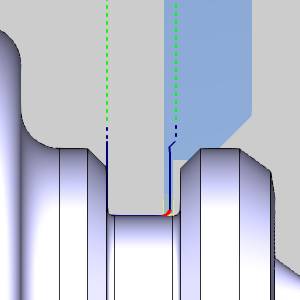
Use Tool Holder - a collision check is done on the holder, and the toolpath is adjusted to ensure the tool holder does not collide with the geometry. 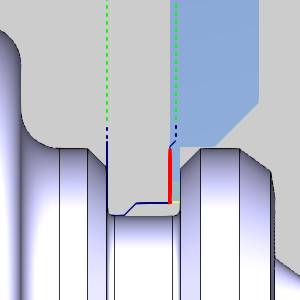
-
On without Collision Detection - the system compensates for the tool nose radius and the insert geometry without checking for collisions.


| System Compensation: | |||
|
Theoretical Point |
Off |
On with Collision Detection |
On without Collision Detection |
|
|
|
|
|


-
Machine Compensation
Outputs the necessary codes to allow for the user to enter compensation data at the machine. When this is done, the machine will alter the path based on the data entered at the machine. This can even be used in combination with System Compensation in order to compensate for tool wear or other unforeseen variables.
Parameters
Parameters
The parameters section give you control over the allowances, if any, that are left on the selected geometry
Finish Allowance - will allow you to leave material on the workpiece to be handled by another finishing pass. Setting values for the Finish Allowance will leave the last pass of this operation offset from the selected geometry by the amount entered in the available Z and X boxes.
Z
- sets the amount left in the Z direction for the finish.
X - sets the amount left in the X direction for the finish.
|
No |
Finish Allowance |
|
|
|


.
Chip Break
The option allows you to create minute retract moves, at user specified intervals, to aid in chip breaking.
Chip Break... - With this option cleared, the toolpath will not include chip break moves.
Chip Break... -
With this option selected, the toolpath will include chip break moves that can be modified in the Chip Break dialog. Click the Chip Break button to enter the dialog.
|
Chip Break... |
Chip Break... |
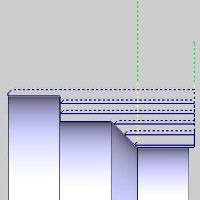
|
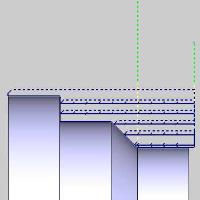
|
Options
This group allows you to determine how the intervals between retracts should be defined.
- Length of cut - The retracts are determined by the amount of space between them.
- Time - The retracts are determined by the amount of time between them.
- Length of chip - The retracts are determined by the amount of material being removed between them.
Corner Type
This section gives you a way to create sharp corners when moving through outside angles and corners. When system compensation is being used, the toolpath adjusts to keep the specified geometry of the tool in contact with the geometry. In the case of outside angles and corners, this causes a radius in the toolpath as the tool rounds over the geometry.
Round - keeps the specified tool
geometry in contact with the geometry at all times.
Sharp - allows the tool to move
off the geometry in order to line up with the next move on the following
entity. This method eliminates the rounding over of the tool.
|
Theoretical Point on Tool |
||
|
|
||
|
|
||
|
Rounded Corner |
||
|
|
|
|
|
|
|
|
|
Sharp Corner |
||
|
|
|
|


Bounds
The Bounds section give you the ability to trim the toolpath to the bounds set by the Operation Stock.
Trim to Stock - With this option cleared, the toolpath will not be trimmed.
Trim to Stock -
With this option selected, the toolpath that extends beyond
the Operation Stock will be trimmed away.
|
|

|

|

|
Extension - When trimming causes gaps in the toolpath, Extension closes the gap from each side by the amount entered. This is done to create a lead out of, and back into the material.

Maximum Gap - sets the limit on the area to feed across when no stock is detected.

Next Topic
Once the Parameters have been set, click Next >> to continue to the Rapids page.